‏إظهار الرسائل ذات التسميات Stup Droid. إظهار كافة الرسائل

الجمعة، 7 أبريل 2017

How to Update Huawei P9 to Official Android 7.0 Nougat

Official android 7.0 Nougat For Huawei P9 B380-

Official Android 7.0 Nougat now available for Huawei P9 B380, In this article we will Show you How to Install official Android 7.0 Nougat Os on Huawei P9 B380, this is a Latest released version of EMUI 5 for Huawei P9 B380 Russian Users,Earlier we post Nougat update for Huawei P9 and today we provide you the Official Huawei P9 B380 Nougat Update for EVA-L19 variants. The ROM packs with the latest Android 7.0 Nougat firmware which is based on the latest EMUI 5.0 OS. If you want to flash stock Nougat B380 firmware on Huawei P9, then you are in right place. Here we provide you the Official Huawei P9 B380 Nougat Update files with that you can update Russia
Firmware Information –
  • Device – Huawei P9
  • Model – EVA L19
  • Android Version – 7.0
  • EMUI Version – 5.0
  • Firmware – B380
  • Build Number – EVA-L19C10B380
  • Region: Russia
  • Status – Official Beta
  • Type – Full firmware image
  • Size – 1.4 GB
Note:-
  • This Firmware file is only for Huawei P9 EVA-L19. Don’t try this on any other device.
  • Your device must be on stock firmware and stock recovery.
  • Follow the steps correctly otherwise you may brick your device.
  • We are not responsible for any damage to your phone.
  • It may erase your data so it is advisable to take a complete backup of your phone for safer side.
  • Ensure that your phone has at least 50-60% charged to prevent the accidental shutdown in-between the process.

Download Huawei P9 B380 Nougat Update

How to Install B380 Update on Huawei P9 –
Step 1
1) First, download Full B380 ROM for Huawei P9 from above and extract it.

2) Now create a folder dload in the root of your SD card and place the update.app file in that folder.

3) Now dial *#*#2846579#*#* from your phone dialer to open a hidden menu.

4) Now select Software Upgrade and start SDCard Upgrade.

5) Now select and run the update.

6) Wait until the installation process is complete and then reboot your device.

7) Done.

Step 2
1) Now download update_data_full_hw_ru.zip for Huawei P9 from above and extract it.

2) Now copy all data including update.app file in the dload folder.

3) Now dial *#*#2846579#*#* from your phone dialer to open a hidden menu.

4) Now select Software Upgrade and start SDCard Upgrade.

5) Now select and run the update.

6) Wait until the installation process is complete and then reboot your device.

7) Done.
So This IS a Complete Guide to Download And Install official Android 7.0 nougat OS on  Huawei P9 B380, If you have any question Let us know via Comment,
Search tag-
Huawei P9 B380 nougat update, how toupdate Huawei P9 B380 to official android 7.0 nougat, download nougat firmware for Huawei P9 B380, install android 7.0 Nougat on Huawei P9 B380, cara install android 7.1 nougat on Huawei P9 B380, download nougat on Huawei P9 B380, android 7.0 nougat update for Huawei P9 B380 Russian users,para install official android 7.1 nougat os on Huawei P9 B380,

How To Root Micromax Canvas Amaze 4G Q491

Root Micromax Canvas Amaze 4G-
Unlock Bootloader and install twrp and root Micromax Canvas Amaze 4G, Here I Will Show You How To Root Micromax Canvas Amaze 4G,

Micromax Canvas Amaze 4G smartphone was launched in February 2016. The phone comes with a 5.00-inch touchscreen display with a resolution of 720 pixels by 1280 pixels.The Micromax Canvas Amaze 4G is Run On Android 5.1 OS powered by 1.2GHz quad-core Qualcomm Snapdragon 410 processor and it comes with 1GB of RAM. The phone packs 8GB of internal storage that can be expanded up to 32GB via a microSD card. As far as the cameras are concerned, the Micromax Canvas Amaze 4G packs a 8-megapixel primary camera on the rear and a 2-megapixel front shooter for selfies.
The Micromax Canvas Amaze 4G [Root] is a dual SIM (GSM and GSM) smartphone that accepts two Micro-SIM. Connectivity options include Wi-Fi, GPS, Bluetooth, FM, 3G, 4G (with support for Band 40 used by some LTE networks in India). Sensors on the phone include Proximity sensor, Ambient light sensor, Accelerometer, and Gyroscope.
Requirements-
How To unlock Bootloader On Micromax Canvas Amaze 4G-
  • on phone Enable Device Debugging and oem unlock from Setting/Developer Option 
  • on pc Install Correct adb and FAstboot Driver
  • Go to Adb And Fastboot Tools Folder and Open Cmd Here
  • Connect your Phone Into Pc Via USb Cabel
  • Type Command- adb reboot bootloader To boot device into Fastboot mod
  • Then type fastboot oem unlock to Unlock bootloader
  • then type fastboot reboot to reboot debvice
Your device Is Now unlocked and Reddy To Install Custom recoveries And Rom,
How To Root Micromax Canvas Amaze 4G-
Step 1.download root tools from Above
Step  2.Now enable USB Debugging. 
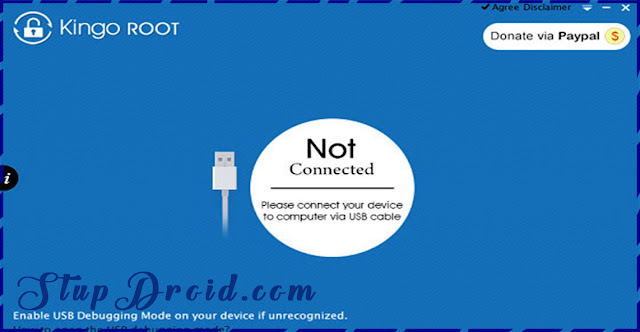
Step 3.Connect your Device to your computer via USB cable. Make sure the connection is stable. Do not touch or unplug the cable until the instructions say so.[If you have already installed the drivers on your PC, skip to the next step] 
Step 4.After connecting to computer, Kingo Android Root will automatically check for the latest drivers for your device and  it will download and install them for you. Once the driver installation is finished, the program will establish a connection with your device. 
Step 5.Once -connected, your device model name and root status will appear on the software as long as ROOT Notifications and a ROOT button.
Step 6.Once you’ve read the disclaimer go ahead and click ROOT to start rooting your device. It will take a few minutes to complete the process.
Step 7.after some time Kingo Root will give you a success notice. Before you unplug your device, click “Finish” and wait for your device to reboot.
Step 8.download root checker apps from play store and check.
How top Backup Stock Firmware Without Recovery-
How To Install Twrp Recovery Micromax Canvas Amaze 4G-
Recovery Not Available For This Device At This Time,Come Back Later,

So This IS The Complete Guide To unlock Bootloader Install Recovery and Root Canvas Amaze 4G Smartphone,
Search tag-
how root Micromax Canvas Amaze 4G, root apk Micromax Canvas Amaze 4G, root tool Micromax Canvas Amaze 4G, rooting method Micromax Canvas Amaze 4G, root steps for Micromax Canvas Amaze 4G, twrp Micromax Canvas Amaze 4G, cwm Micromax Canvas Amaze 4G, twrp apk for Micromax Canvas Amaze 4G, cwm recovery Micromax Canvas Amaze 4G, twrp recovery for Micromax Canvas Amaze 4G,

How to Install Stock Rom on Allview P5 Pro

Official Firmware for Allview P5 Pro-
Official Firmware/ flash file now available for Allview P5 Pro, in this article we will Show you How to Install Stock Rom and unbrick Allview P5 Pro, Here we will Show you both fastboot and Sp flash tool Method you can sue any one According your Need both Method Work good, if want fastboot Flashing Follow this Guide, or Want to Flash via Sp flash tool Stay Continue,

official Rom for Allview P5 Pro come with Full Rom Package that Contain Official Firmware, Flash tools and Driver so you can Easily Install the Rom, Flashing the ROm will erase all your personal data and you are back on Stock , So Create a backup before Doing anything, Follow Bellow Guide to Install official Rom on Allview P5 Pro,
Firmware Details-

Device- Allview P5 Pro

OS- Android 6.0

Chipset- Mediatek MT6735M

Language- English/multi

Gapps- included

Root Access- Not
Note-
  • This ROM/Recovery is work on Listed Device only. Don’t try this on any other device.otherwise it cause bootloop,
  • Follow the steps correctly otherwise you may brick your device. We are not responsible for any damage to your phone.
  • It will erase all your data, so we advise you first to take a complete backup of your phone and then proceed.
  • Ensure that your phone has at least 50-60% charged to prevent the accidental shutdown in-between the process
Download tools to Install Stock Rom on Allview P5 Pro-
File NameDownloads
SP flash tools V5.2XXDownload
Stock Rom P5 ProDownload
Vcom Driver [Latest]Download
Read also-How to Install Stock Rom on Allview P5 Pro-
Step 1.Download SP flash tools from above link and extract in a folder.{you can Extract on Desktop For Batter navigation,

Step 2.Install correct adb and Vcom Driver in your PC from above link[wrong Driver installation cause failure]

Step 3.Download[Tools, Rom, Recovery Etc} from above for your device and extract in a folder.

Step 4.Go to extracted SP tools folder and Run SP flash tools exe file.{extracted In Above Steps]

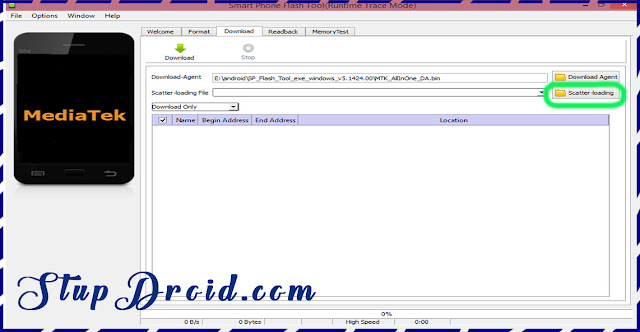
Step 5.in SP tools go to Download tab and click on load scatter file and select scatter file from stock Rom folder.
Step 6.select what you want flash, Select Whole Rom {in custom Recovery case Check Recovery Only}
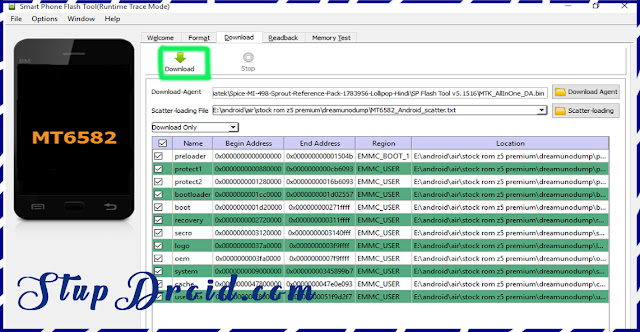
Step 7.Remove battery of your phone and click on download button and immediately connect your smartphone into PC using usb.{if Not Detect then insert battery and connect}
Step 8.wait while flashing is complete it take a few minut to flash after success.insert battery and you are done switch on your smartphone.
So This is the Complete Guide to Install Stock Rom on Allview P5 Pro if you have any question Let Us Know Via Comment,
Search tag-
Stock Rom for Allview P5 Pro, flash file for Allview P5 Pro, firmware for Allview P5 Pro, rom file download for Allview P5 Pro, cara flash Allview P5 Pro, official Rom Install on Allview P5 Pro, rom download guide for Allview P5 Pro cara unbrick Allview P5 Pro, flashing instructions for Allview P5 Pro, steps to root Allview P5 Pro, twrp and custom  Rom for Allview P5 Pro,

How To Install Stock Marshmallow Rom On Huawei G play Mini

Download and install Stock Marshmallow Rom On Huawei G Play Mini-
Install Stock Rom On Huawei G Play Here I Will Show You how To Install Stock Marshmallow Rom On Huawei G Play Mini Smartphone,
 
Huawei G Play Mini Stock Marshmallow Firmware is now available for download. The ROM packs with the latest Android 6.0 Marshmallow firmware which is based on the latest EMUI 4.0 OS. The update brings many new changes in Gallery, contacts, apps and in setting menu. If you want to flash stock ROM on Huawei G Play Mini or want to update Huawei G Play Mini CHC-U01 to latest marshmallow firmware, then you are in right place. Here we provide you the Official Huawei G Play Mini B560 Stock Marshmallow Firmware for Middle East/Africa CHC-U01. Download Huawei G Play Mini Stock Marshmallow Firmware from below.
Firmware Details-
  •     Device – G play mini
  •     Model – CHC-U01
  •     Android Version – 6.0.1
  •     EMUI Version – 4.1
  •     Firmware – B560
  •     Region – Europe
  •     Country – all
  •     Status – Official
  •     Type – Full firmware image
  •     Size – 1.58GB
Note- 

  • This Firmware file is only for Listed Device. Don’t try this on any other device
  • Your device must be on stock firmware and stock recovery.
  • Follow the steps correctly otherwise you may brick your device.
  • We are not responsible for any damage to your phone.
  • It may erase your data so it is advisable to take a complete backup of your phone for safer side.
  • Ensure that your phone has at least 50-60% charged to prevent the accidental shutdown in-between process
Downloads-
Stock Marshmallow Here 
How To Install Marshmallow on Huawei G Play Mini-
 Steps-
1) Download Stock ROM for Huawei G play Mini from above and extract it.

2) Now create a folder dload in the root of your SD card and place the update.app file in that folder.

3) Now turn off your device.

4) Now press “Volume Up + Volume Down and Power Button” together. The update process will start automatically.

5) Now wait for some time to complete the process.

6) Done.
This is the easiest way to Download and install Stock ROM on G play Mini. If you have any questions comment below. 

search tag- 
Huawei G play Mini marshmallow Rom, install stock rom on  Huawei G play Mini, download and install Huawei G play Mini, install Marshmallow On Huawei G Play Mini, how install Huawei G Play Mini, download and install android 6.0 on Huawei G Play Mini, kara install android 6.0 on Huawei G Play Mini, how to download and install android 6.0 on Huawei G Play Mini, install stock firmware Huawei G Play Mini, stock firmware on Huawei G Play Mini, stock android 6.0 on Huawei G Play Mini, install android 6.0 on Huawei G Play Mini, how install marshmallow on Huawei G Play Mini