الخميس، 19 مارس 2015

NEX Firmware Collection


NEX Mobile ဖုန္းေတြရဲ့ Firmware စုစည္းမွဳ


ကဲ ဒီတစ္ခါေနာက္ထပ္ ထိုင္းကုမဏီအမည္းခံ တစ္မ်ိဳၿဖစ္တဲ့ NEX Mobile ဖုန္းေတြရဲ့ ရွာပါလွတဲ့
Firmware ေလေတြစုစည္းတင္ေပးလိုက္တာပါ လင့္မေသခင္ ဆိုင္သမာေတြ ေဒါင္းၿပီ သိမ္းထာၾကေနာ္


NEX 305 Firmware ကိုေဒါင္းရန္

NEX306 Firmware ကိုေဒါင္းရန္

NEX Sport2 Firmware ကိုေဒါင္းရန္

NEX Slam6 Firmware ကိုေဒါင္းရန္

NEX Smart 11 Firmware ကိုေဒါင္းရန္

NEX Start 5.5 Firmware ကိုေဒါင္းရန္

NEX Start 7 Firmware ကိုေဒါင္းရန္

NEX 304 Firmware ကိုေဒါင္းရန္

NEX MINGALABA 4 Firmware ကိုေဒါင္းရန္

NEX MINGALABA 3 Firmware ကိုေဒါင္းရန္

NEX Smart 9A Firmware ကိုေဒါင္းရန္

NEX Slam 2 Firmware ကိုေဒါင္းရန္

NEX Star2 Firmware ကိုေဒါင္းရန္

NEX Star1 Firmware ကိုေဒါင္းရန္

NEX Smart 6 Firmware ကိုေဒါင္းရန္

NEX Smart 9BB Firmware ကိုေဒါင္းရန္

NEX Smart 307 C tablet Firmware ကိုေဒါင္းရန္

NEX 306 tablet Firmware ကိုေဒါင္းရန္

NEX Smart 4 Firmware ကိုေဒါင္းရန္

NEX 213 tablet Firmware ကိုေဒါင္းရန္

NEX Smart 5B Firmware ကိုေဒါင္းရန္

NEX 216 tablet Firmware ကိုေဒါင္းရန္

NEX 206 tablet Firmware ကိုေဒါင္းရန္

post by SmartGhost
ref: http://thaiinmyanmarit.blogspot.com/
အဆင္ေျပရင္ေအာက္ပါေၾကာ္ျငာကိုတစ္ခ်က္ကလစ္ခဲ့ပါ
++++++++++++++++++++++++++++++++++++++++++++++++++++ ++++++++++++++++++++++++++++++++++++++++++++++++++++ အဆင္ေျပပါေစ ေက်းဇူးတင္ပါတယ္

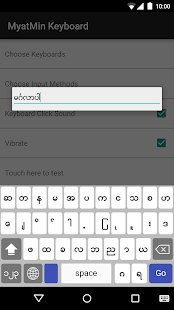
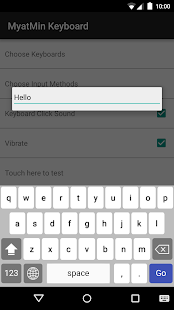
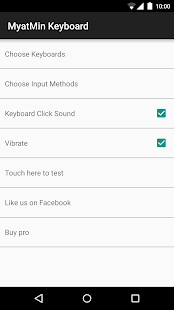
MyatMin Key - Myanmar Keyboard Android


MyatMin Key - Myanmar Keyboard - screenshot thumbnailMyatMin Key - Myanmar Keyboard - screenshot thumbnailMyatMin Key - Myanmar Keyboard - screenshot thumbnail

Description

MyatMin Key - Myanmar Keyboard is a soft keyboard for Android devices with simple iOS UI. You can download it for free from Google Play. Pro version with smart zawgyi features may available later.

credit-Myat Min Soe

အဆင္ေျပရင္ေအာက္ပါေၾကာ္ျငာကိုတစ္ခ်က္ကလစ္ခဲ့ပါ
++++++++++++++++++++++++++++++++++++++++++++++++++++ ++++++++++++++++++++++++++++++++++++++++++++++++++++ အဆင္ေျပပါေစ ေက်းဇူးတင္ပါတယ္

الاثنين، 16 مارس 2015

Upgrading Samsung Devices by Samsung Kies

This is the official upgrading operating system for Samsung mobile phones
To upgrade your Samsung device you will need
Charged Samsung device (more than 60%), original USB cable and installed Samsung Kies software (Link below)

Connect your device to computer by USB cable (Wait untill some files will be downloaded)
1- Open Kies then you will see a message announce you that there is a "New firmware is available"
kies update galaxy
2- Click on Upgrade firmware then aceppt and start
upgrade the galaxy
(it will download some files to prepare upgrading -10MB approx- ) 
Then Kies will start downloading the firmware (1GB approx), extract firmware and install it

Notes :
~ Never disconnect the USB cable while upgrading
~ Its better to put your device in flight mode

Downloads :
Latest Samsung Kies Here
- See more at: http://www.w0lfdroid.com/2013/04/upgrading-samsung-devices-by-samsung.html#sthash.ruySEsZ8.dpuf


အဆင္ေျပရင္ေအာက္ပါေၾကာ္ျငာကိုတစ္ခ်က္ကလစ္ခဲ့ပါ
++++++++++++++++++++++++++++++++++++++++++++++++++++ ++++++++++++++++++++++++++++++++++++++++++++++++++++ အဆင္ေျပပါေစ ေက်းဇူးတင္ပါတယ္

How To UNROOT and Reset Flash Counter for All Samsung Galaxy devices


This is a full UNROOTING tutorial for Samsung galaxy devices, reset flash counter to bring the warranty back.
"Samsung devices store a flash counter that keeps track of how many times you have flashed custom firmwares to your device after rooting"
This process is very important if you would like to send your device to warranty

Requirements : 
~ Charged and Rooted Samsung galaxy S3
Triangle Away App on your device
~ Official firmware (Download from SamMobile or Samsung-updates)
~ Odin3 (Link below)
~ Installed Samsung Kies software or Samsung Mobile driver on PC (Link below)

Un-Rooting instructions :
Read all and watch video first

Backup your data first because all data on your device will be deleted 
1- Download and install "Triangle Away" App (Link below)
2- Open "Triangle Away" ... (it will ask for root permission ... Accept)
(You should see message like this "Please confirm your device is this exact model GT-I9300")
3- Tap continue
(The App will download some data Select "Download" and wait ...)
4- Choose "Reset flash counter" and "Continue"
Your device will restart into special mode
5- Volume up to continue
6- While rebooting ... quickly Remove the battery and back it again
7- Start your device into "Download mode" (Volume Down + Home + Power)
8- Volume up to continue
9- Flash the official firmware for your galaxy device by Odin 
- After the flashing and configuration process finish quickly Unplug USB cable , Remove the battery and back it again
10- Start your device into "Recovery mode" (Volume UP + Home + Power)
11- Choose "Wipe data/factory reset" then "Yes" and wait ...
12- Choose "Wipe cache partition" 
then "Reboot system now"
Done !
Now check your "Device status" , It should be "Normal" :)
Notes :
~ "Triangle Away" may unmount your SD card , you can mount it from storage settings
~ status can only be reset on some firmware for the new devices like SGS3/SGNote2/SGNote10.1
~ This process works for various Samsung galaxy devices like (S3/2,Note1/2/10.1",Tab)
~ "Triangle Away" does work on some (not all) stock firmwares. 
~ Resetting counter value doesn't work on custom firmwares
Some devices set the counter to 1 at every boot if you are running a custom kernel or recovery 
On these devices, Triangle Away may always display 1make sure to check the counter in actual download mode 
~ I am not responsible if something bad happened to your device (use this AT YOUR OWN RISK)
~ Step 2 : If you continue and this is not your device model, you will brick your device 
~ After you finish this process, you will be able to receive the OTA updates ;)

Downloads : 
Triangle Away Store or XDA thread 
Odin3_v3.04 HERE, v3.07 HERE, v3.09 HERE 
Latest Samsung Mobile Driver HERE
Latest Samsung Kies HERE
 http://www.w0lfdroid.com/2013/04/how-to-unroot-samsung-galaxy-devices.html


အဆင္ေျပရင္ေအာက္ပါေၾကာ္ျငာကိုတစ္ခ်က္ကလစ္ခဲ့ပါ
++++++++++++++++++++++++++++++++++++++++++++++++++++ ++++++++++++++++++++++++++++++++++++++++++++++++++++ အဆင္ေျပပါေစ ေက်းဇူးတင္ပါတယ္

How to Convert .img Recovery to .tar.md5 Flashable File (Windwos)


This tutorial is about how to convert the .img recovery (non flashable file in Odin3) to .tar or .tar.md5 (a flashable file in Odin3) by windows
This is too easy if you followed instructions

Requirements :
1- "Cygwin" Linux environment tool (Link below)
2- "Recovery.img" file (Link below) 

Instructions :
1- Install and Run "Cygwin"
2- Copy "Recovery.img" file to C:\cygwin\home\(PC name) and Paste it
3- Rename "recovery-clockwork-xxxxx.img" file to "recovery.img"
4- Type
tar -H ustar -c recovery.img > recovery.tar
Then enter
5- Type
md5sum -t recovery.tar >> recovery.tar
Then enter
6- Type
mv recovery.tar recovery.tar.md5
Then enter
You will find a new file "recovery.tar.md5"

You can also Type all cmd in one step
tar -H ustar -c recovery.img > recovery.tar
md5sum -t recovery.tar >> recovery.tar
mv recovery.tar recovery.tar.md5
If you want to end your file wilth *.tar ... Just type
tar -H ustar -c recovery.img > recovery.tar
md5sum -t recovery.tar >> recovery.tar
Done!
Links :
~ Cygwin HERE
~ CWM recovery HERE
အဆင္ေျပရင္ေအာက္ပါေၾကာ္ျငာကိုတစ္ခ်က္ကလစ္ခဲ့ပါ
++++++++++++++++++++++++++++++++++++++++++++++++++++ ++++++++++++++++++++++++++++++++++++++++++++++++++++ အဆင္ေျပပါေစ ေက်းဇူးတင္ပါတယ္

How to Exit Factory Mode for Samsung Galaxy Devices

"Factory Mode" is enabled if the EFS partition of your device is corrupted.
Sometimes if you succeeded in fixing the EFS partition, you stuck in factorymode.
If you see a annoying transparency black box which contains some info about your device (PDA, CSC, H/W, TSP, TSK ...) in yellow characters ... mean you are in factory mode.

Your device must be rooted to exit this mode.

Steps :
1. Download "ES File Explorer" or "Root Explorer" app
2. Open " Root Explorer" and navigate to : efs/FactoryApp/
3. Open "factorymode" file with text editor
4. Change it from 
OFF
to 
ON
5. Save and exit then Reboot your device
If it doesn't work, do the same steps for "keystr" file
You can also exit this mode by using another method

Steps :
1. Download "Terminal Emulator" app
2. Open "Terminal Emulator" and type 
Su
Then enter
3. Type
rm /efs/FactoryApp/keystr
rm /efs/FactoryApp/factorymode
echo -n ON >> /efs/FactoryApp/keystr
echo -n ON >> /efs/FactoryApp/factorymode
chown 1000.1000 /efs/FactoryApp/keystr
chown 1000.1000 /efs/FactoryApp/factorymode
chmod 0744 /efs/FactoryApp/keystr
chmod 0744 /efs/FactoryApp/factorymode
reboot
Then enter ... your device will reboot

Downloads :
"ES File Explorer" app HERE
"Root Explorer" app HERE
"Terminal Emulator" app HERE 

ref:http://www.w0lfdroid.com/2013/08/exit-factory-mode-samsung-galaxy.html
အဆင္ေျပရင္ေအာက္ပါေၾကာ္ျငာကိုတစ္ခ်က္ကလစ္ခဲ့ပါ
++++++++++++++++++++++++++++++++++++++++++++++++++++ ++++++++++++++++++++++++++++++++++++++++++++++++++++ အဆင္ေျပပါေစ ေက်းဇူးတင္ပါတယ္

How to Fix "Not Registered on Network"/Wrong IMEI for Galaxy S3/S4/Note2

This tutorial will learn you how to fix "not registered on network", wrong IMEI for :
  • Samsung galaxy S3 GT-I9300 model ONLY.
  • Samsung galaxy Note 2 GT-N7100 model ONLY. 
  • Samsung galaxy S4 GT-I9500 model ONLY.
  • Samsung galaxy S4 GT-I9505 model ONLY.
Before starting :
  • Backup your important data first just in case of this process corrupt your data.
  • Download and install Samsung mobile driver (Skip this if you already have Samsung Kies)  (Link below)
  • Download MODEM.tar.md5 file then unzip it only one time (Link below)
  • Download Odin3 then unzip it (Link below) Disable the antivirus software, Close Samsung Kies and disconnect any device connected to USB ports on your computer.
Flashing instructions :
1- Run "Odin3" as administrator, Click on PDA button and navigate to Modem.tar.md5 file that you extracted.
2 - Shut down your device and make sure your device is completely off
3 - Put your device into download mode by pressing and holding (Volume Down + Home + Power) buttons
4 - Press Volume up to continue
5 - Connect the device to your computer by USB cable and wait until you get a sign in Odin (ID:COM section) and "Added" in message box.
6 - Make sure re-partition is NOT SELECTED [Very important]
7- Click Start and wait a few seconds until you see "PASS!".

Notes :
  • Do not disconnect the cable or turn off the device while flashing
  • I am not responsible if something wrong happened to your device (use this AT YOUR OWN RISK)
  • Install Samsung Mobile Driver or Samsung Kies if you don't see a sign in Odin (Step 5)
  • This process takes maximum 1 minute
  • In some cases this won't fix the wrong IMEI or "not registered on network" message
  • If your device stuck in boot loop after downgrading, factory reset your device from recovery mode (Vol up+Home+Power)
Downloads :


အဆင္ေျပရင္ေအာက္ပါေၾကာ္ျငာကိုတစ္ခ်က္ကလစ္ခဲ့ပါ
++++++++++++++++++++++++++++++++++++++++++++++++++++ ++++++++++++++++++++++++++++++++++++++++++++++++++++ အဆင္ေျပပါေစ ေက်းဇူးတင္ပါတယ္